Tuesday, January 15, 2013

How to export iCloud contacts to your computer

This short guide shows how to export your iCloud contacts to your computer. There are a number of reasons for why you would wish to export your iCloud contacts – one of them is to keep a safe backup of your iCloud contacts on your computer.


Exporting your iCloud contacts

1. Download CopyTrans Contacts on your PC. CopyTrans Contacts helps you connect to your iCloud account and download contacts, calendars, notes and more to your computer

http://www.copytrans.net/copytranscontacts/

2. Start the tool and connect your iPhone, iPad, or iPod touch to thePC.

3. Click on the "More" button on the top right corner of the program window and then choose "Cloud setup"

main copytrans contacts window

4. From the newly-opened window, click "+ New connection" then choose "iCloud"

window to connect icloud account to pc

5. Enter your iCloud credentials and then click "Add account"

add account button moused over

6. Close the Cloud setup window and let your iCloud contacts load up in the main program window. Select all contacts by checking the box next to "Contacts" on top of the contacts list

icloud contacts listed in windows program on pc

7. Click the "Export selected" button on top

export selected button

8. You now have the choice to select the location where to export the iCloud contacts. You can transfer the contacts to Outlook on the PC or to a folder on your PC, to an Android device, to an Excel document, etc. I chose the "Save your address book" option, which saves the contacts into individual vCard (.vcf) files to a selected folder on my PC.

prompt to export contacts in various file formats and locations

That's all. The iCloud contacts are copied to the PC.

contact vcard files in windows explorer

This is how to easily export iCloud contacts to PC. Learn more.

Friday, January 4, 2013

Facebook Messenger for iPhone to feature free calling

On Thursday, the Facebook Messenger app for iPhone has just received an update to version 2.1 and will start rolling out a new “push to talk” feature.

According to Facebook, the “push to talk” free calling function is currently enabled only for Facebook Messenger users in Canada.

Here is how the Facebook Messenger app update appears on my iPad Mini. Of course the app remains strictly for the iPhone for now.

Free calling in Facebook Messenger means that the app would rival apps such as Viber and even Skype. However, note that so far there is no word from Facebook headquarters for video calling in their Messenger app.

Wednesday, December 26, 2012

Backup iPhone SMS

Many colleagues and friends of mine have been asking me a simple question: How to backup iPhone SMS messages? Rudimentary this question might be; however, there is no direct way to backup your iPhone SMS messages to your computer in a user-friendly way.

Using standalone utilities for iPhone SMS backup

I have found no single tool to be doing the job perfectly, however the below PC program closes in to what one genuinely needs on a daily basis in order to backup SMS text messages to one's computer:

http://www.copytrans.net/copytranscontacts-notes-sms.php

1. In order to export and backup your iPhone SMS, download and run the above utility; then, connect your iPhone to your computer. Your iPhone SMS messages will now be displayed after you click on the iPhone SMS icon on the far right of the program window

2. Follow the directions in this video, or continue with the steps below:


3. Now select the iPhone SMS to backup and click Export selected

4. Select the location on your computer where to backup your iPhone SMS

5. The iPhone SMS you selected is now saved to a folder on your PC into HTML files. You can see that I have exported all my iPhone SMS messages in this way

6. You can now freely access and interact with your iPhone SMS backed-up in this way on your computer

What I’d like to see this utility do is also to help me delete my text-messages from my iPhone all at once. I hope this feature will follow with a future release.

Backing up your iPhone SMS via iTunes or the iCloud

Another way to backup iPhone SMS messages is via iTunes sync. iTunes will backup your iPhone SMS, emails, and contacts along with your iPhone settings when syncing with your iPhone.

The caveat is that you can never access your iPhone SMS backup made via iTunes on your PC. In order to see your backed up iPhone SMS messages, you would need to restore your iPhone from the backup made by iTunes which will also restore your iPhone settings, contacts and other data at the time when the backup was made.

Backing-up iPhone messages with iCloud works in the same way as backing-up with iTunes. You can enable automatic iCloud backup on your iPhone by navigating to Settings > iCloud > Storage & Backup and enable iCloud Backup.

I hope I have been helpful and you will now find it easier to backup iPhone SMS to your computer in a more user-friendly way.

Thursday, December 13, 2012

Official Google Maps app: Out for iPhone

Apple has finally approved a Google-produced Maps app for the iPhone 5, iPhone 4S, iPhone 4 and 3GS as well as for the iPod Touch. You can already download the official Google Maps app from the iTunes store.

With iOS 6, Apple decided to reinvent their Maps app by scrapping the map services offered by Google and replacing them with their own. The revamped Apple Maps iPhone app did not cater to the expectations of many and some even found it disappointing due to numerous incorrectitudes and other issues compared with the service provided by Google Maps.

With users who updated to iOS 6 finding no way to revert back to the Google Maps service which the official Maps iPhone app offered in previous iOS versions, Google initially remained silent on any prospects of developing their own native Google Maps iOS app.

However, it was clear that Google was cooking a Maps app of their own and on September 12th it was unofficially rumored that Google submitted their Maps app to Apple for approval.

At last, Google Maps iPhone app was just officially approved by Apple for the iPhone – possibly an iPad app will also follow soon.

At first sight the new Google Maps app looks revamped, yet it features a simple interface. The Maps app gives you a chance to log in with your Google account but you can skip this step.

The satellite map imagery is as outstanding as Google could make it.

You also have the old Traffic and Public transit features we know from the original Maps app.

Here is how the app looks on my iPad Mini. Obviously, the Google Maps app is still available only for the iPhone, at least in the beginning.

Finally, here is a YouTube video from New York Times revuewing the newly-approved official Goolge Maps app.

Thursday, December 6, 2012

Add events to iPhone calendar

This quick post explains how to add events to your iPhone calendar directly from your iDevice.

If you would like to manage and add events to your iPhone calendar directly from your computer, then have a look at this quick guide instead: How to add calendar events to iPhone?

There are various methods in which you can manage calendars and calendar events on your iPhone. The mainstream way is to do so directly on your iPhone. However, some people find this method of using their iPhone calendar limited due to the small iPhone screen and virtual tap-keyboard.

Here is a short YouTube video quickly showning how to add events to your iPhone calendar from your PC:


Adding event entries to iPhone calendar from within your iPhone

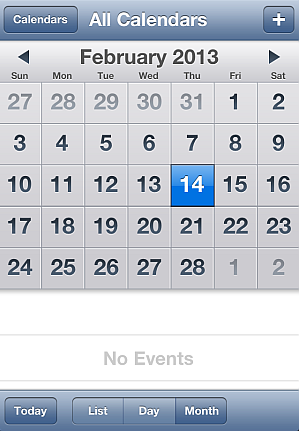
In order to add an event to your iPhone calendar, simply tap on Calendar from the Home Screen. Next, tab the day on which you want to add the iPhone calendar event and click on the "+" button.

Now, add your iPhone calendar event title, location and information about beginning and ending time. You can also set alerts for your iPhone calendar events prior to the time they occur. Tap on Done.

The newly-added event on your calendar will appear directly on your iPhone.

Wednesday, October 31, 2012

PC: Transfer iPhone notes

Have you ever needed to transfer your iPhone notes to your computer? Here’s a quick guide about how to transfer iPhone notes to your PC.

There aren’t too many ways in which you can copy notes from your iPhone using what’s already on your device.

iPhone notes transfer directly to computer

You can export your iPhone notes via using a third-party tool such as the one below:

To do so, simply download and run the above program on your Windows PC and connect your iPhone to your computer. You can follow the directions from the YouTube video below or continue reading on for the detailed steps.

Related article: Transfer "On My iPhone" notes to iCloud

Your iPhone notes will appear in the main program window as shown.

Before you transfer your notes from your iPhone to your PC, you can view and edit them directly on from the program window.

Now, transfer your iPhone notes to your computer, simply by selecting all notes and clicking on the “Export selected” button. Then navigate to the location on your PC where you want the iPhone notes transferred to.

Your iPhone notes will now be copied directly to your PC. You can now open your iPhone notes on your computer and read, edit or print at your convenience.

You will also be able to import any TXT or HTML file from your PC to your iPhone using the method above.

This is how you export iPhone notes directly your computer.


Transferring iPhone notes via iCloud

Note: This method requires iOS 5 + and an @me.com email account

Since not too long ago, iCloud has made Apple users happy by allowing them to sync and transfer much of their iPhone data such as contacts, reminders, and bookmarks. iCloud also features iPhone notes transfer and sync.

You can easily transfer your iPhone notes to your computer using iCloud. To do so:

1. Enable iCloud Notes sync on your iPhone by going to Settings > iCloud and then moving the “Notes” from to ON


2. In order to enable iPhone notes sync with your iCloud account, you need an @me.com email account. If you haven’t set up an @me.com email address yet, your iPhone will guide you through the steps of creating one


3. All notes on your iPhone you create from the moment you enabled Notes sync will now transfer to your iCloud account. Note that notes created on your iPhone before you enabled iPhone Notes sync with iCloud will not be transferred

4. On you computer, log in to your iCloud account via a regular web browser by navigating to:


5. Click on the “Notes” icon. You will now see your new iPhone notes transferred to your iCloud account


6. You can also send your iPhone note as an email by clicking on the envelope icon at the bottom of the note


This is a simple way to transfer iPhone notes and display them on your computer. If you would like to save your iPhone notes offline directly to your PC use the first method above using the transfer iPhone notes tool.

Thursday, October 11, 2012

How to delete all contacts on iPhone?

There are a number of ways to delete all iPhone contacts. Which one you choose depends on what you want to achieve. This article describes three quick methods of deleting multiple contacts from your iPhone.

Deleting contacts directly from your iPhone

If your contact list is not extensive, you can delete your address book by deleting your contacts directly on your iPhone. To do so:

1. Launch the Contacts app

2. Select a contact

3. Tap “Edit”

4. Now navigate to the bottom of your contact and tap “Delete Contact”

remove multiple iphone contact

Of course, if you have a contact list exceeding 100 entries, this method of removing iPhone contacts will take some time. If you have a large iPhone address book, it is recommended that you use one of the methods below in order to delete multiple iPhone contacts at once.


Deleting contacts directly from your iPhone

A quicker and easier method to remove multiple or all iPhone contacts at once is by using a standalone application such as CopyTrans Contacts.

1. Download the tool from here:

delete all iphone contacts at once

2. Open the app on your computer and connect your iPhone

Next, follow these video instructions or continue with Step 3 below:


3. All iPhone contacts will instantly appear in the program’s main window. Now select all contacts, right-click and select “Delete contacts”

delete all iphone contact

4. You have now managed to delete all contacts from your iPhone in one go.


Delete all iCloud and Exchange contacts from your iPhone at once

If you have your iPhone contacts synced with iCloud or to your email account via Exchange, there is another easy way to remove all iPhone contacts at once.

1. On your iPhone, navigate to “Settings > Mail, Contacts, Calendars” and click on iCloud (or Exchange depending on where you sync your iPhone contacts)

2. Now make sure you move the slider next to “Contacts” from ON to OFF. Upon prompt, tap on the “Delete from my iPhone” button

delete all contacts on iphone

This will delete all contacts on your iPhone which were currently synced to iCloud or your email account.