Thursday, February 6, 2014

How to backup iPhone apps to PC

It is not always evident how to save iOS applications to a computer. Even more so, after restoring apps back to the iPhone, iPad, or iPod Touch, not everyone can be sure whether the app data was conserved and restored.

The following is a quick demonstration of the three independent methods I use to backup my iPhone apps to PC. In this way, I can be sure that app documents and preferences are preserved during both backup and restore:

Backup iPhone apps with preferences and documents

iCloud backs up apps and app data, however, the iCloud back ups are encrypted. In addition, to restore the apps, you must effectuate a complete restore of the iPhone or iPad to a previous state. The steps below show how to back up iOS apps complete with preferences and documents without the need for iCloud.

You can then restore the apps of your choice to another iPhone or iPad without having to bring the entire device to a previous state.

1. On your PC, download and install the following program which is designed to backup iOS apps and documents and is currently offered as a free Beta version:

2. Start the program on the PC and connect the iPhone, iPad, or iPod Touch containing the apps you'd like to back up. The iPhone apps are displayed in the program window

iphone apps are displayed on windows pc program window

3. Select the apps to backup to your PC. Here, I selected 5 apps

select iphone apps on windows comptuer

4. Click on the Backup App button

backup app button in copytrans apps

5. Select the location on your PC where to back up the iPhone apps and app preferences. Here, I selected my PC Desktop. Click OK

browse for location to save iphone apps on pc

6. From the newly-appeared popup, click Ok

settings window copytrans apps click ok

Tip: If you click on the Options symbol from the same popup window, you can select what app components to back up. For example app data, app documents, app preferences or all of the above.

7. Stand by for the backup process to complete

app backup process in copytrans apps

The selected iPhone apps along with their app preferences, documents and data have been saved to the computer location of your choice in individual ZIP files.

ios apps in zip backup files on pc desktop

Tip: You can use the ZIP files in order to restore your iOS apps and their documents to another iPhone, iPad, or iPod Touch, again via using CopyTrans Apps.
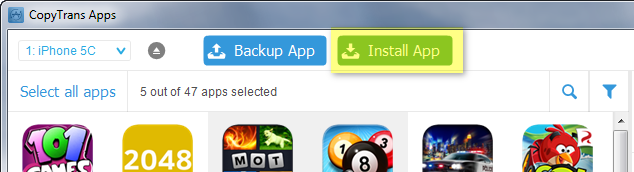
install apps button on main program window

Quick YouTube tutorial: Backup and Transfer iPhone apps and app documents to PC

Transfer iOS apps to PC via iTunes

iTunes allows you to back up individual iOS apps into IPA files to your PC. To do so:

  1. Run iTunes and connect your iPhone or iPad
  2. With iTunes window in focus, press the ALT key on your keyboard. The menu bar appears on top. Navigate to “View > Show Sidebar”

    show itunes sidebar>
  3. Right-click on your iOS device and click “Transfer purchases”. Accept the subsequent iTunes prompts and if needed, use your Apple ID and password to authorize your PC

    itunes transfer iphone apps to pc
  4. The iPhone app files are transferred to the computer in the form of IPA files. This folder is called “Mobile Applications” and exists within your iTunes Media Folder.

    itunes transfer iphone apps to pc

NOTE: The “iTunes Media” folder and “Mobile Applications” folder locations where IPA app files are transferred to vary slightly with different versions of Windows (or Mac).

  • Windows 8, 7: \username\My Music\iTunes
  • Windows Vista: \username\Music\iTunes
  • Windows XP: \Documents and Settings\username\My Documents\My Music\iTunes
  • Mac OS X: /Users/Music/iTunes/iTunes Media

Backup iPhone apps using iCloud

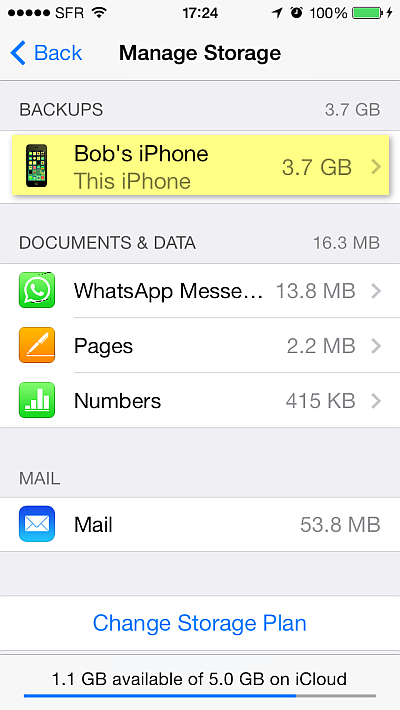
You can back up iOS app data easily via iCloud. If you already have an iCloud account, simply navigate to the iCloud settings on the iPhone by going to Settings > iCloud > Storage & Backup > Manage Storage.

icloud settings manage storage for ios app backup

Next, tap on the iOS device.

iphone backup select icloud

From the following screen, you can select which app data to backup.
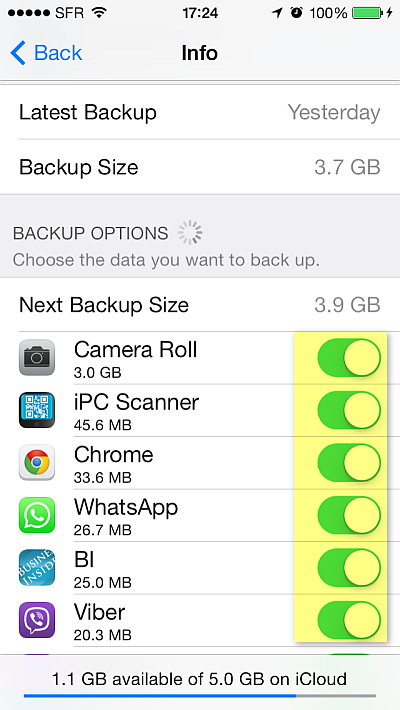
select what ios app data to back up

Finally, tap the “Back” button twice to return to “Storage & Backup” and tap “Back Up Now”.

icloud app data back up now>

Both iTunes and iCloud backups should work at 100% - this is in a perfect world of course. There’s always something which could go wrong with the backups so be sure to have your iOS apps and app data backed up by at least two alternative methods (for example, both by iCloud and iTunes) at the same time.

Wednesday, January 15, 2014

How to properly backup and restore iPhone without iTunes?

iPhone backups to PC with iTunes are encrypted and if you’d like to restore back only individual data such as a few iPhone contacts, photos, or notes, you are out of luck.

There are a number of methods to back up iOS data such as iPhone contacts, apps or SMS as well as iPad notes, photos, music and videos which do not require iTunes.

Backup iPhone contacts, notes and messages

Let’s face it you bought a new iPad Air, or the latest iPhone 5s and you would like to transfer only certain of your old iPhone contacts or notes to the new iOS device.

To back up iPhone contacts, text messages, notes and calendars to a PC, use the following iOS data manager tool:

If you are a Mac user, read on for alternative backup methods further below.

Backing up iPhone contacts is easy. Run the program and navigate to the Contacts section. Select all the iPhone contacts you wish to back up.

And hit the “Export selected” button.

I particularly like this contact backup method as I can choose how to export the iPhone contacts – as Android files, as Gmail contacts, or as regular vCard (VCF) files.

In this example, I had all of my iPhone contacts backed-up in the form of regular individual vCard files

Whatever iPhone contacts backup method you choose, you can always restore the contacts to another iPhone by clicking on the “Import contacts” button.

In much the same way, you can back up iPhone text messages notes and calendars. Here I am showing how to export an iPhone SMS conversation to the PC. Just click on the Messages button from the main program window.

Notice that apart from regular SMS and iMessage conversations, you can also backup WhatsApp and Viber messages to the PC. Just click on the “Export selected” button once more.

For a full set of tutorials on how to back up and transfer iPhone contacts, messages, notes, and calendars, have a look at this page:

iCloud as an alternative to iTunes backup

iCloud backs up iOS data in much the same way as iTunes. Just as iTunes, iCloud will back up:

  • iOS apps and app data
  • iOS settings and saved passwords
  • iOS contacts, text conversations, call logs, notes
  • iPhone Camera Roll
  • iPhone calendars and calendar events

iCloud backup is more flexible than the one provided by iTunes, as you can back up the iPhone via iCloud regardless whether you have a PC. Also, you can set iCloud to automatically back up iOS data off your iPhone. To do so, go to Settings > iCloud > Storage & Backup and turn on “iCloud Backup”.

The same limitation as with iTunes backup exists however when it comes to restoring iOS data to the iPhone. The principle is “All or Nothing”. Bottom line, you cannot only restore certain iOS data to the iPhone or iPad from iCloud.

To restore iPhone from iCloud, you need to wipe out your previous iPhone data and settings by going to Settings > General > Reset, then tap “Erase all content and settings”.

Backup iPad photos and iPhone apps and music to PC without iTunes or iCloud

Use the rest of the CopyTrans 4Pack tools to complete your iOS backup and transfer anything from photos to music, playlists and voice memos:

Here's a YouTube tutorial demonstrating how to back up iPad photos without the need for iTunes:

For Mac users only

The programs described above can only backup iPhone on a Windows PC. If you are on Mac, use a program called PhoneView instead.

Use the rest of the CopyTrans 4Pack tools to complete your iOS backup and transfer anything from photos to music, playlists and voice memos:

The program is an all-in-one tool which allows Mac users to backup iPhone Contacts, Notes, Call Logs, Messages and Apps.

Wednesday, December 4, 2013

20 years of tech innovation

Sometimes a picture really means a thousand words:

Originally found here: http://goo.gl/iK1YSz.

Wednesday, November 6, 2013

iPhone 5s and iPad Air hands-on review

With the iPhone 5s release long gone, I decided to wait for the iPad Air and review both devices.

The new iPad on the block

Apple announced two new iPad models – the iPad Air (5th generation) and the iPad mini with Retina display (2nd generation iPad mini). I got myself the iPad Air as soon as it was out and would consider whether to also go for the iPad mini Retina once its released by the end of November.

You can see me unboxing my new iPad Air toy:

Compared to the older iPad models, the new iPad Air has thinner side bezels. It looks remarkably similar to the iPad mini (although it is larger). See how the iPad Air compares with my old iPad 2.

Apple notes that the iPad Air with its 469 grams (1.034 lb) is lighter than its predecessor. However, the iPad does not feel noticeably lighter. Also, although thinner than the previous iPad, the iPad Air does not feel so. At its maximum depth, the iPad Air is indeed 7.5 mm (0.30 in) which is less than the previous iPad 9.4 mm (0.37 in); however, the new iPad Air features less difference between its minimum and maximum depth than the iPad 4th generation.

In terms of speed, the iPad Air, does feel perceptibly swifter with its A7 microprocessor and M7 graphics coprocessor.

iPhone 5s hands-on

The iPhone 5s is Apple’s most advanced iPhone so far and it does indeed feel like a jewel. This having been said, however, physically it is not much different than the iPhone 5 which spoils some of the excitement.

I unboxed my iPhone 5s Gold back in September and hurried to test the Touch ID. Holding it in my hand for the first time, I did not feel the iPhone 5s was lighter than its predecessor. I clearly remember the substantial difference between the weight of iPhone 5 and the iPhone 4S.

Now, the iphone 5s is indeed impressive with its A7 chip (the first 64-bit chip installed on a mobile device). However, unless you substitute your PSP PlayStation Portable or PSVITA with the iPhone (I don’t), you won’t notice the huge graphics performance and speed difference.

The new iPhone 5s camera is much worth it however. The 5s is currently the only iPhone to allow slow-motion video shooting. In general, I am pleased with both the iPad Air and the iPhone 5s and would recommend upgrading to anyone with a previous iPad or iPhone generation.

Wednesday, September 25, 2013

iOS 7 update problems: What can occur and how to resolve?

There are a number of problems which could occur when updating the iPhone, iPad or iPod Touch to iOS 7. First, and foremost, make sure back up all iOS data on your iPhone via iTunes or iCloud before proceeding with updating. This will save you a lot of trouble should the iOS 7 update fail.

Be sure to check the following article which will help you resolve some of the most common issues occurring during update to iOS 7: http://goo.gl/axuVqT.

When upgrading, make sure to update iOS via using OTA (over-the-air) update rather than using iTunes. OTA update brings increased reliability of the iOS upgrade process. If you choose to upgrade via iTunes, you might encounter error messages during or after the update.

Here’s a list with the most common problems during iOS 7 update:

  • iTunes returns an error message during iOS 7 update

  • iPhone in Recover Mode after upgrading iOS

  • iPhone data restore incomplete after firmware update

Thursday, September 12, 2013

iPhone 5c and iPhone 5s expect hands-on

UPDATE: In the meantime, I just unboxed both the iPhone 5s and iPad Air. Check out the review here: iPhone 5s and iPad Air hands-on.

Earlier this week Apple announced the arrival of two new phones: iPhone 5c and iPhone 5s. The news confirms previous rumors that there will not be one but two iPhones announced once of which, the iPhone 5c brightly colored and relatively cheaper. The iPhone 5s, on the other hand is a jewel of advanced mobile technology that I personally can’t wait to put my hands on.

Here is a fun look at how Apple's iPhone 5s / 5c event was all about :) http://goo.gl/OEY0C1

Apple fans in nine countries around the world, including USA, UK and Australia, can start pre-ordering the iPhone 5s as early as tomorrow, September 13th. I will try an pre-order too the same day and once I receive the iPhone will do an in-depth hands-on review.

In the meantime, if you would like to know more about iPhone 5c vs iPhone 5s specifications and features, have a look at the below chart or view the video from Apple’s September 2013 Special Event.

If you are interested in some of the new features of the new iPhone 5s, be sure to also check the below YouTube video showing the all-new Touch ID fingerprint sensor:

Tuesday, August 13, 2013

Ask your iphone contacts question

Got a question about how to transfer iPhone contacts? Would like to know the ways in which can back up iPhone messages or notes? Need to transfer your old Android or BB phone data from to your new iPhone?

Post your question at my Facebook page and you are going to receive the answer the same day:

Or scan the QR code below to create your Facebook question directly:

Post your question directly on the Wall and receive a detailed answer with steps and screenshots the same day!